Issues
Unfortunately, as developers, we do not handle payments or refunds. In case of a refund request, please contact Apple via the App Store.
All payments are processed through Apple.
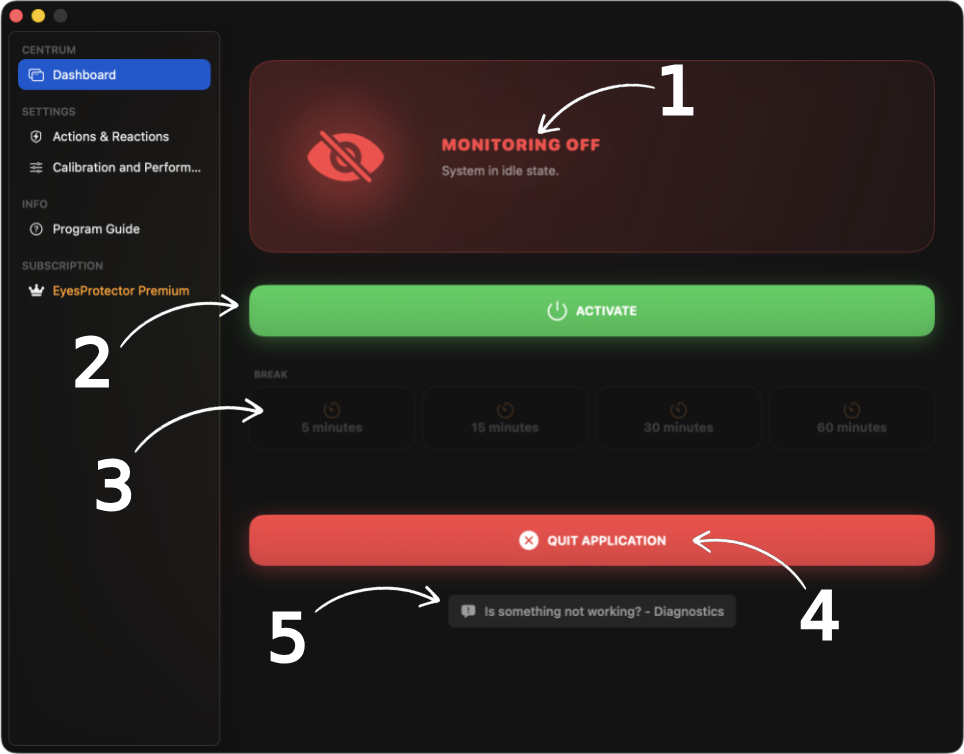
1. Stats
2. Activate button
3. Break Section ( 5 - 60 minutes)
4. Application disabling button
5. Diagnostics section
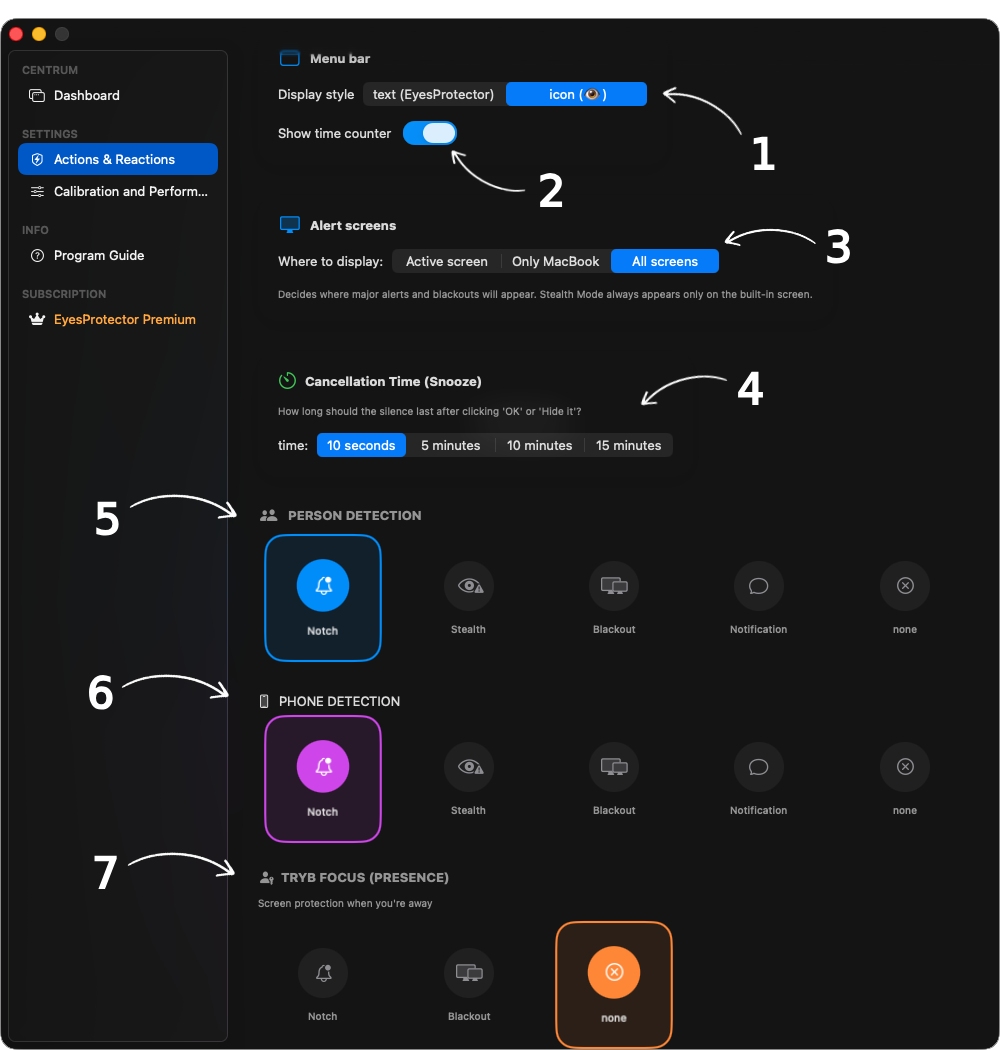
1. Menu bar display settings ( text / icon ).
2. Application work timer display settings on the menu bar ( 00:00:00 / None ).
3. Alert display settings on screens ( Active / Built-in* / All** ).
4. Dismissal time - this is the time between the last dismissed alert and the next one. A dismissed alert is one that was turned off with the 'OK' button, during which time the program ignores the threat. ( 10 seconds / 5 minutes / 10 minutes / 15 minutes ).
5. Action to be performed when a Person is detected ( Notch Animation / Discreet Animation / Blackout*** / Notification / None ).
6. Action to be performed when a Phone is detected ( Notch Animation / Discreet Animation / Blackout*** / Notification / None ).
7. Action to be performed when Focus mode**** is activated ( Notch Animation / Blackout*** / None ).
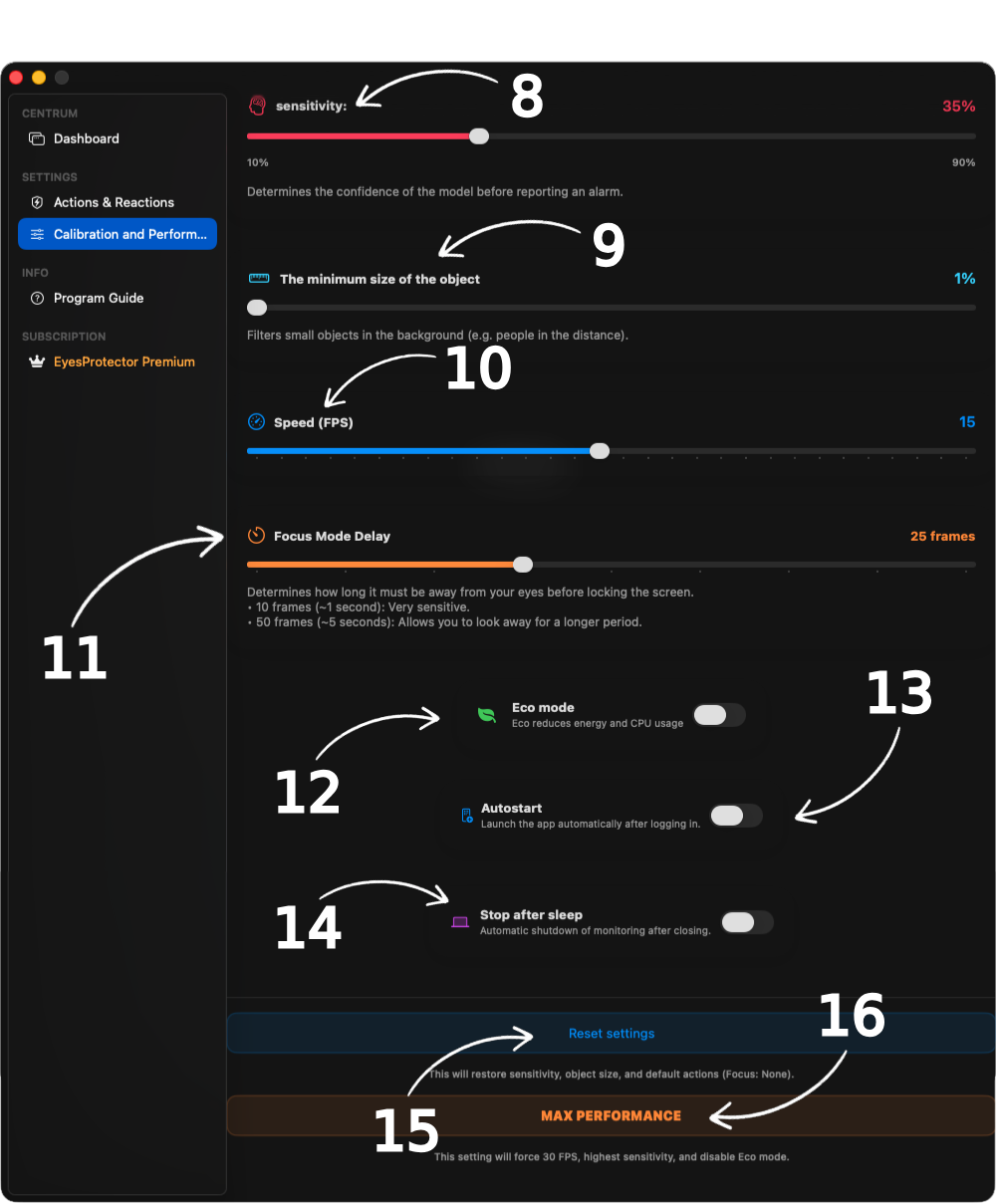
8. Sensitivity bar indicates how certain the models must be before raising an exception.
9. Minimum detected object size bar, settings helpful for regulating detection distance.
10. Frames per second processed by models, the higher the faster.
11. Focus mode delay expressed in frames per second, this is the time from your absence to raising an exception.
12. ECO mode helpful when your device has low battery, it slows down detection and energy consumption.
13. Autostart -- The application will start working with the operating system and during wake-up.
14. Stop on Sleep***** -- The application is closed after closing the lid.
15. Reset settings -- resets settings.
16. Our recommended settings that we believe work best for daily use.
Built-in*, All** -- refers to devices equipped with a built-in screen, and devices that are equipped with / support more than one screen. Blackout*** -- is a black screen animation. Focus**** -- is an idle mode activated when you move away from the device. Stop on Sleep***** -- refers only to devices with a built-in display.
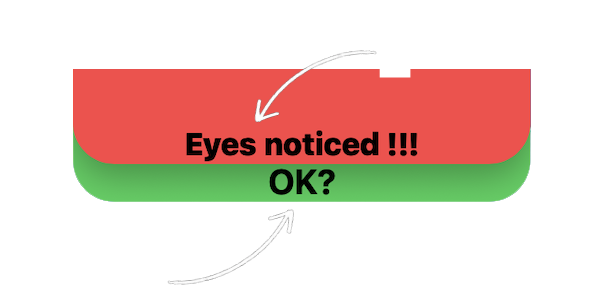
1. Description of what was detected.
2. Dismiss button.
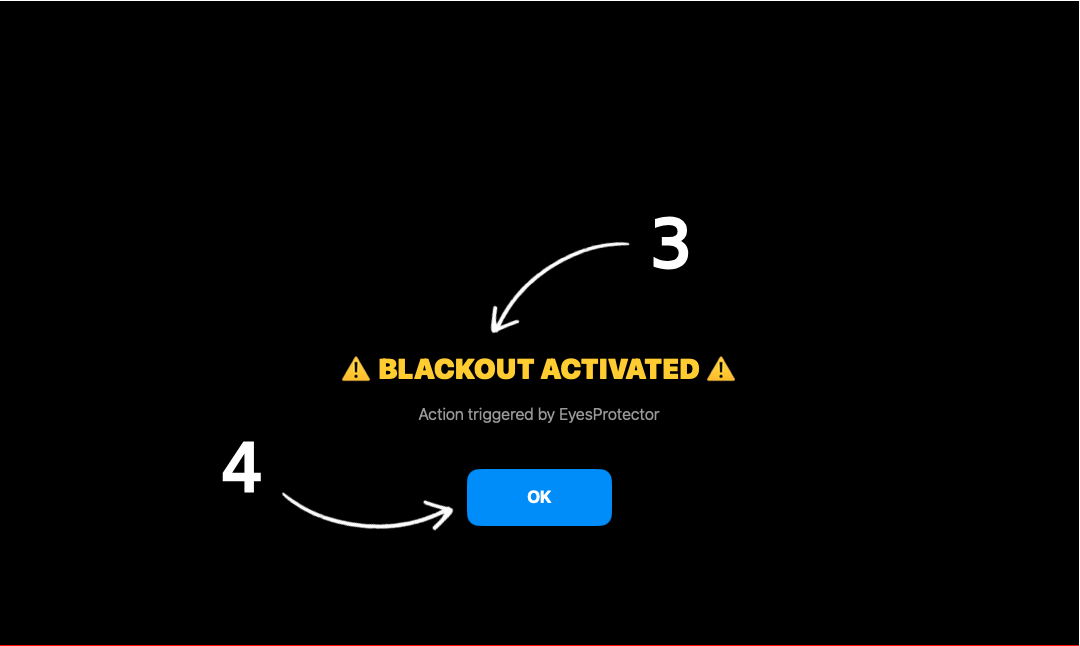
3. Description here.
4. Dismiss button.
1. Check camera usage permissions. EyesProtector needs camera permissions to function.
2. Is the camera light on? In most laptops, there is a LED near the camera indicating its status; usually, green means the camera is working correctly.
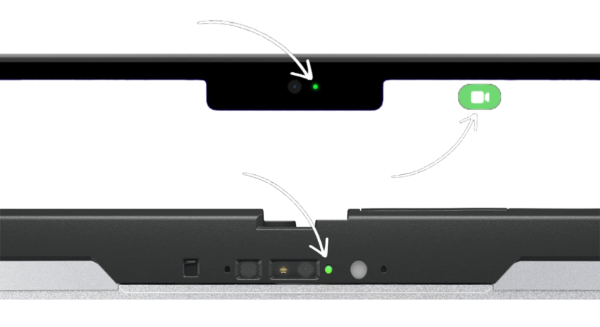
Here is the path to Privacy Settings. You can also adjust settings here.
System Settings -> Privacy & Security -> Camera -> EyesProtector, or directly in the app EyesProtector -> Program Guide
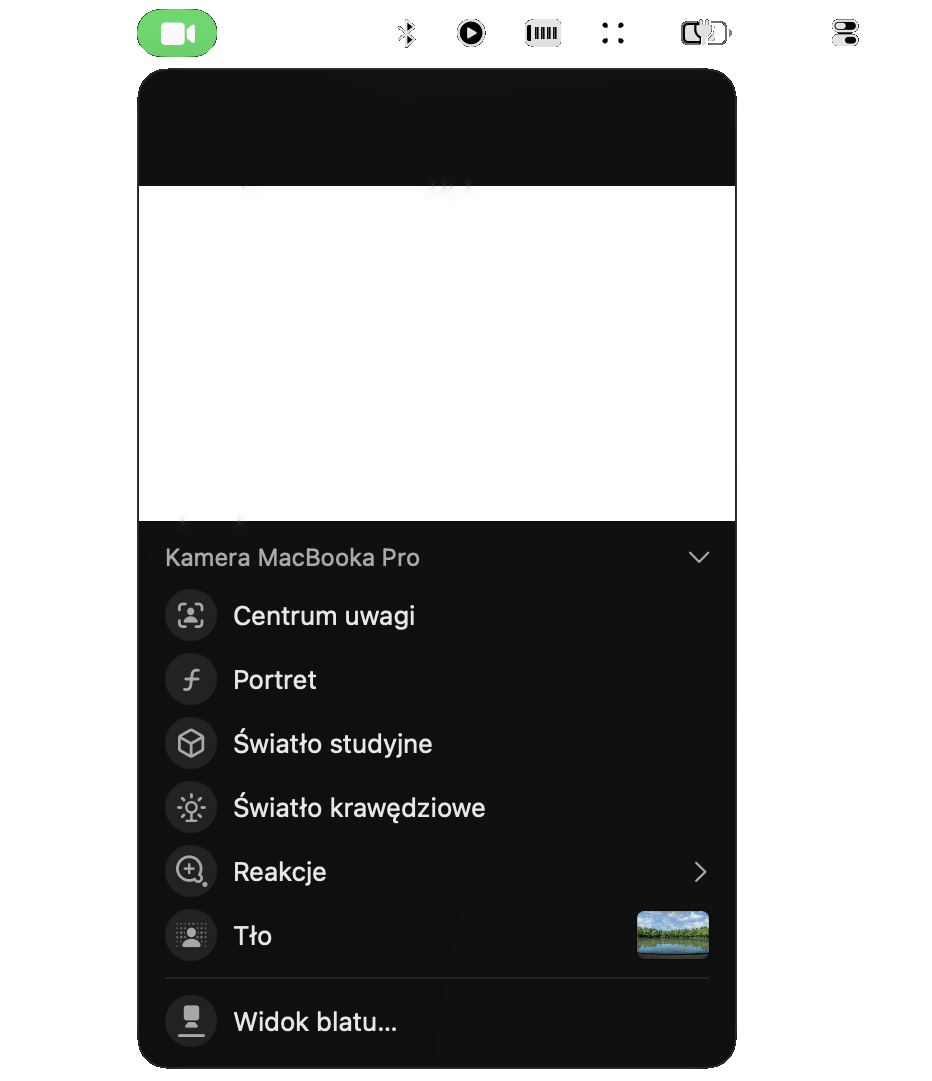
1. Check additional camera settings
During an overload, EyesProtector will be shut down to prevent resource exhaustion.
Have questions or need help?
Write to us. We will respond as soon as possible.
eyesprotector.help@blackline.codes